
Appearance
Payments & Charges FAQs
How do I cancel a membership, training fee, or subscription?
To cancel a membership or subscription:
- Log into your Klubfunder account
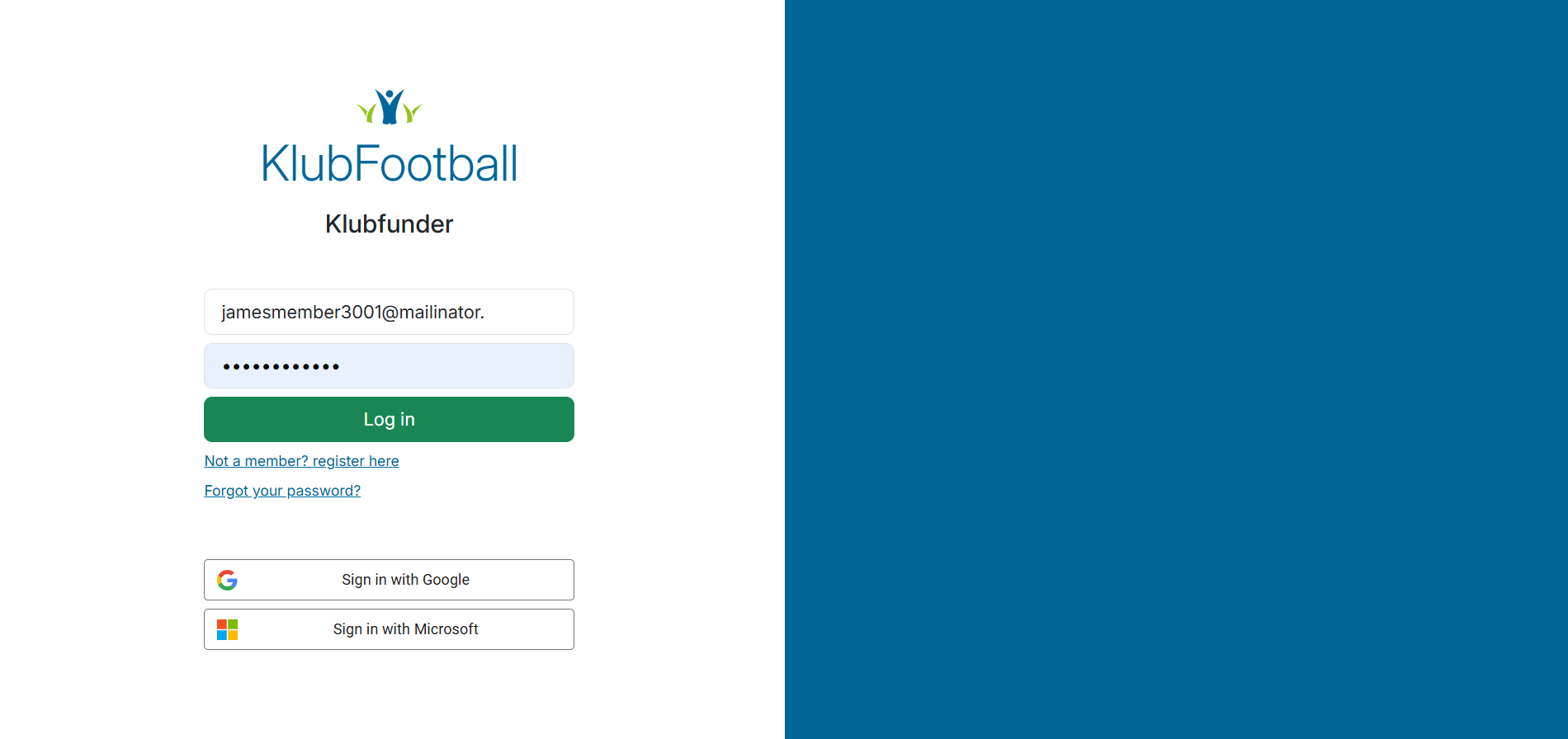
- Go to "My Account" or "My Subscriptions"
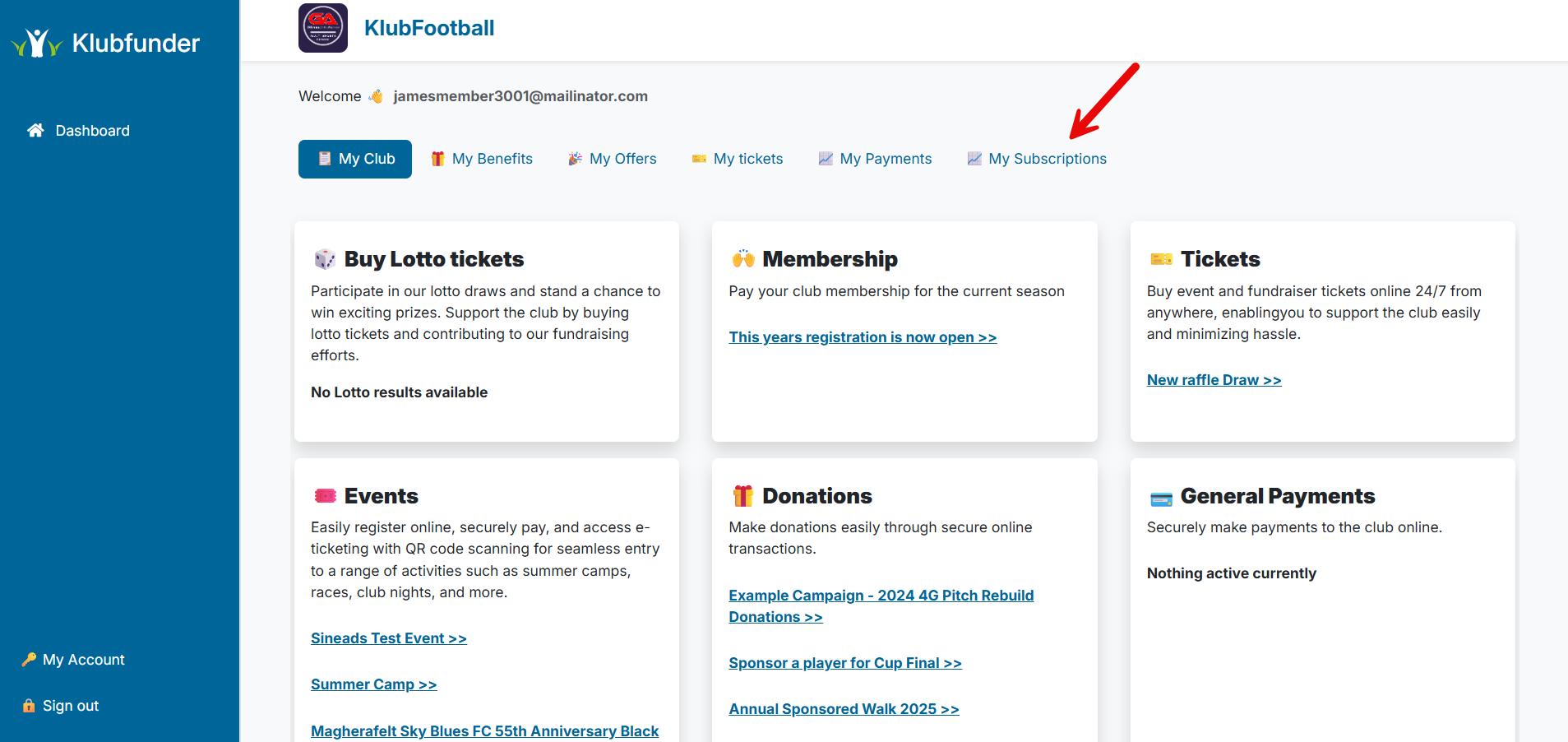
- Find the membership/subscription you want to cancel
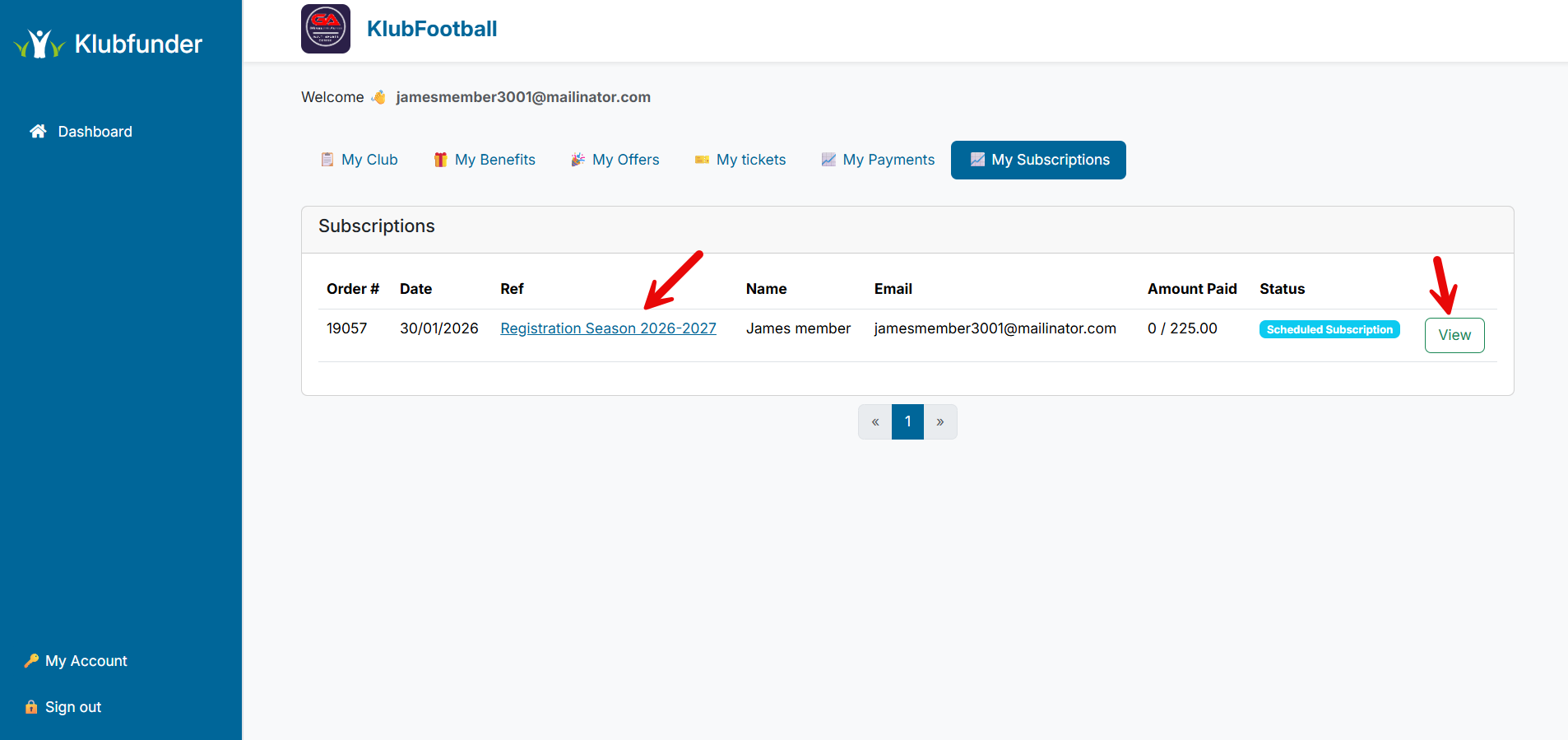
- Click "Cancel Subscription"
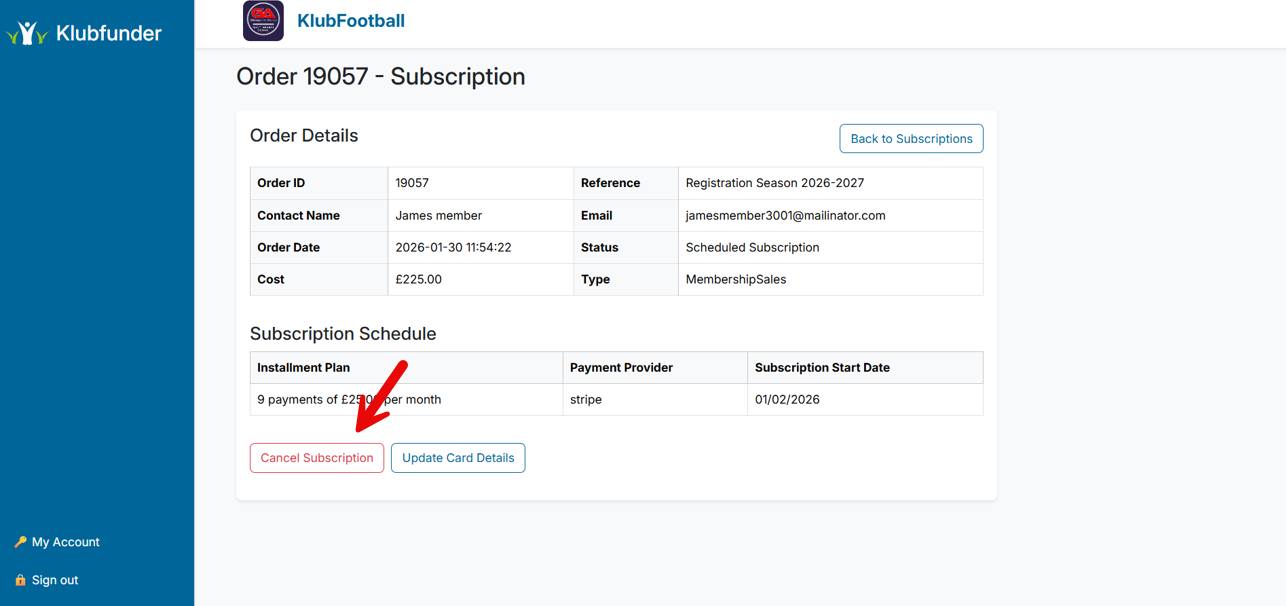
- Confirm the cancellation
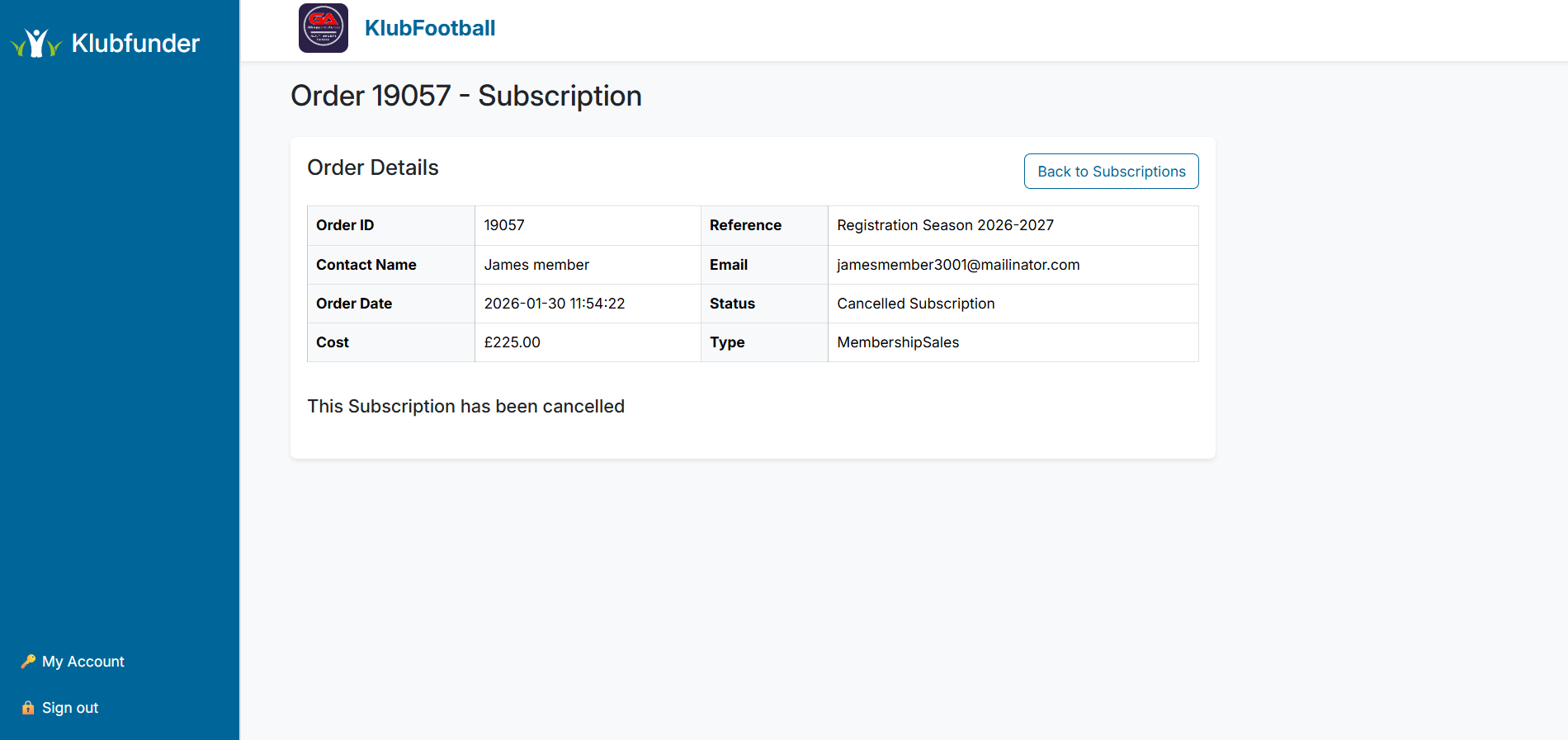
Note: Cancelling stops future payments but doesn't refund past payments. If you need a refund, contact support.
How do I stop auto-renew on my lotto subscription?
- Log into your Klubfunder account
- Navigate to "My Account" → "My Subscriptions"
- Find your active lotto subscription
- Click "Cancel Subscription"
- Confirm the cancellation
Your lotto numbers will remain active until the current subscription period ends, but won't renew automatically.
I was charged twice / my payment looks wrong — what should I do?
If you notice duplicate charges or incorrect payment amounts:
- Check your payment history in "My Account" to verify the charges
- If charges are confirmed duplicates, contact support immediately with:
- Your account email
- Transaction dates and amounts
- Screenshot of the charges if possible
Klubfunder will investigate and process refunds for duplicate or incorrect charges.
I cancelled but payments are still coming out — why?
If payments continue after cancellation:
- The cancellation may not have been processed before the next payment date
- Check your account to confirm the subscription shows as "Cancelled"
- If it's still active, try cancelling again
- If payments continue after confirmed cancellation, contact support with transaction details
How do I update my card or payment details?
To update your payment method:
- Log into your Klubfunder account
- Go to "My Subscriptions"
- Click on "View" to see your Subscription Details
- Click "Update Card Details"
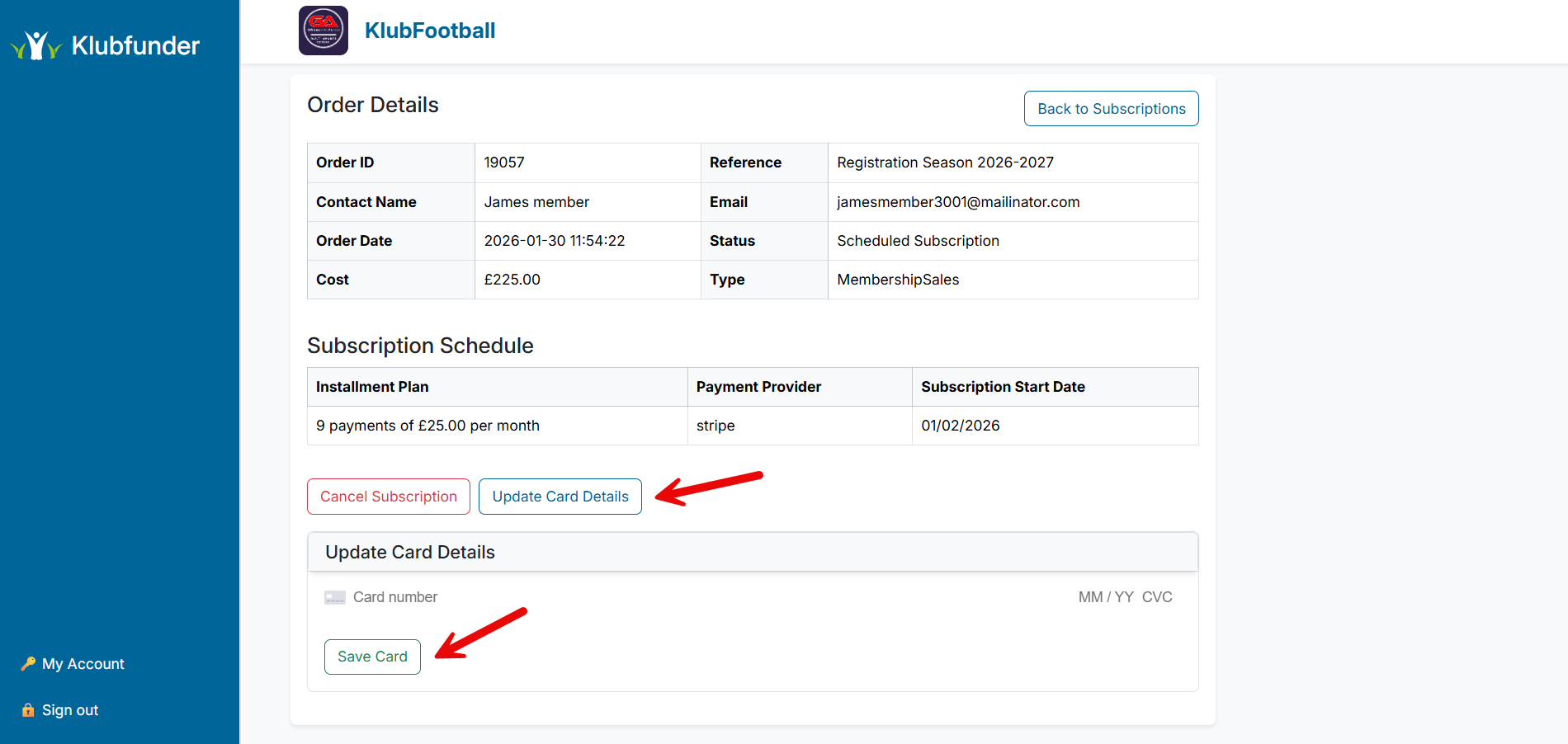 5. Enter your new card details.
- Click "Save Card".
Your updated payment method will be used for all future payments and subscriptions.