Appearance
What Does “Connect” to Klubfunder Do?
Connecting a payment provider links your club’s Stripe, GoCardless, or SumUp account to Klubfunder so payments can be processed securely.
When a provider is connected:
- Members can pay using the payment methods you enable (card, Direct Debit, or in-person card reader)
- Payments are processed by the provider (Klubfunder does not store card or bank details)
- Funds are paid out to your club’s bank account by the provider
- Payment status and transaction information can be shown inside Klubfunder
Step-by-Step: How to Connect a Payment Provider
This guide explains how a club administrator connects a payment provider in Klubfunder.
You will learn:
- Where to find Payment Providers in Klubfunder
- How the connection process works
- How to connect Stripe, GoCardless, and SumUp
- What to check if a connection fails
1️⃣ Log in as Club Administrator
- Go to the Klubfunder login page
- Log in using an account with Club Administrator access
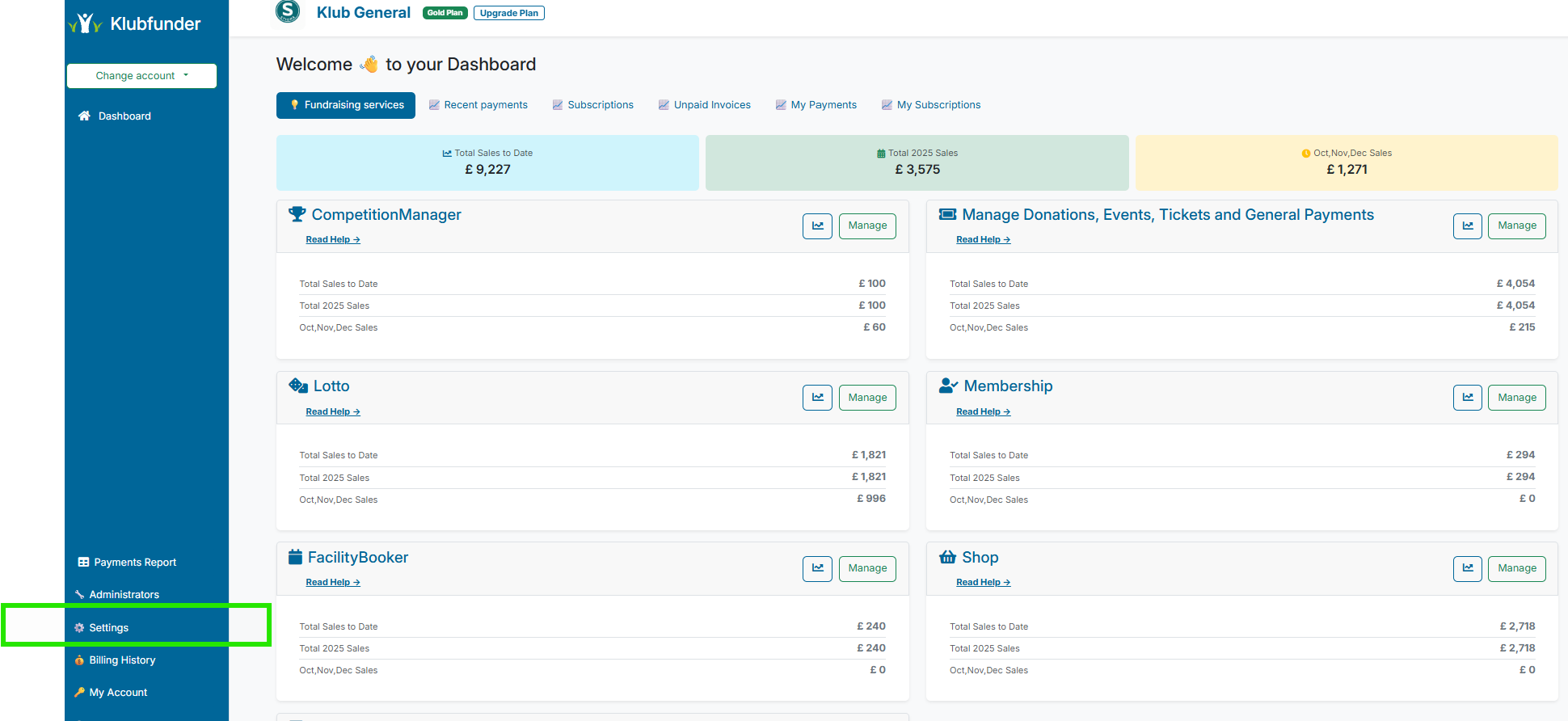
2️⃣ Navigate to Settings
- From your club dashboard, click on Settings
3️⃣ Navigate to Payment Providers
- In Settings, select Payment Providers
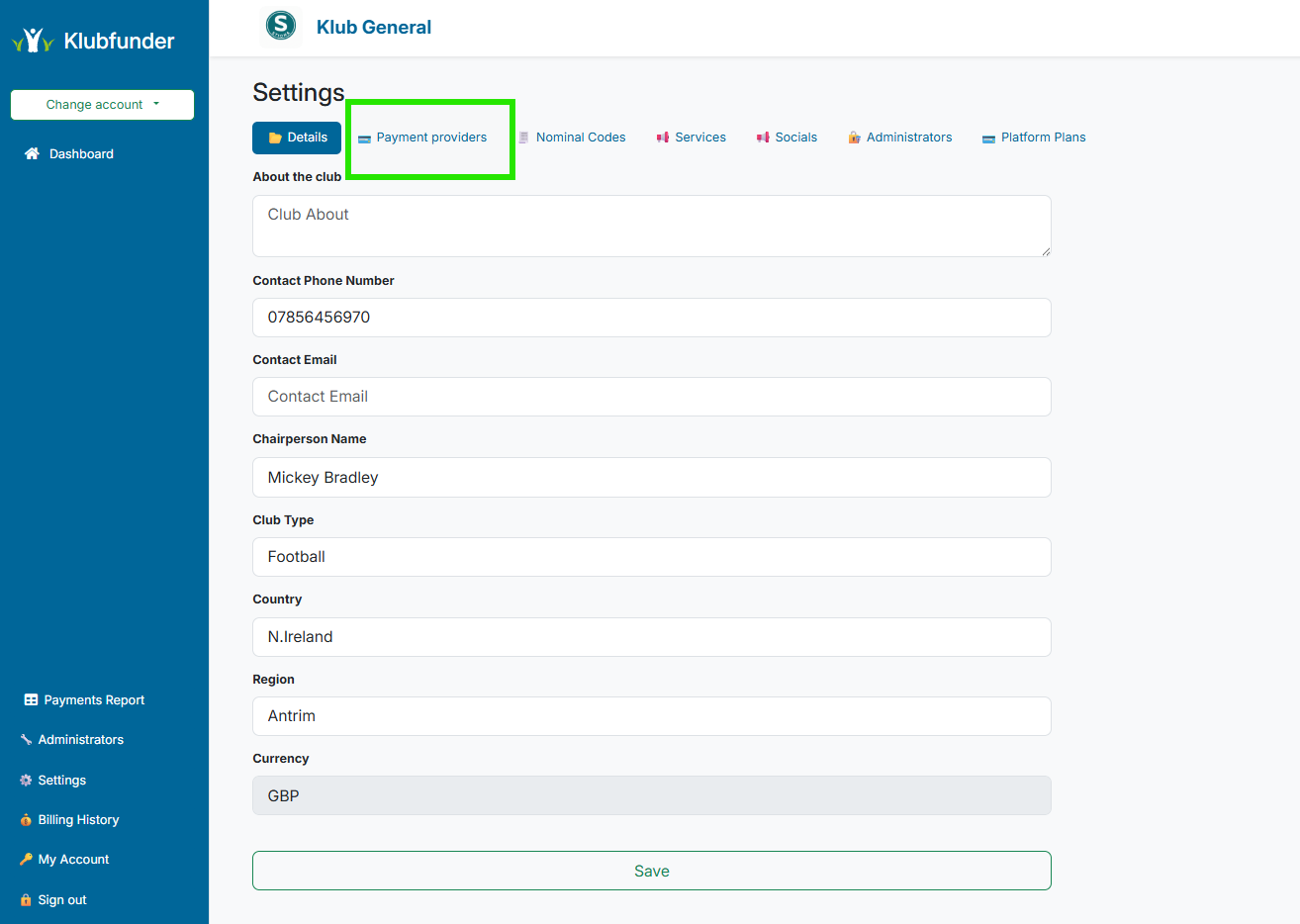
- You will see separate sections for:
- Stripe (Card Payments)
- GoCardless (Direct Debit)
- SumUp (In-Person Card Payments)
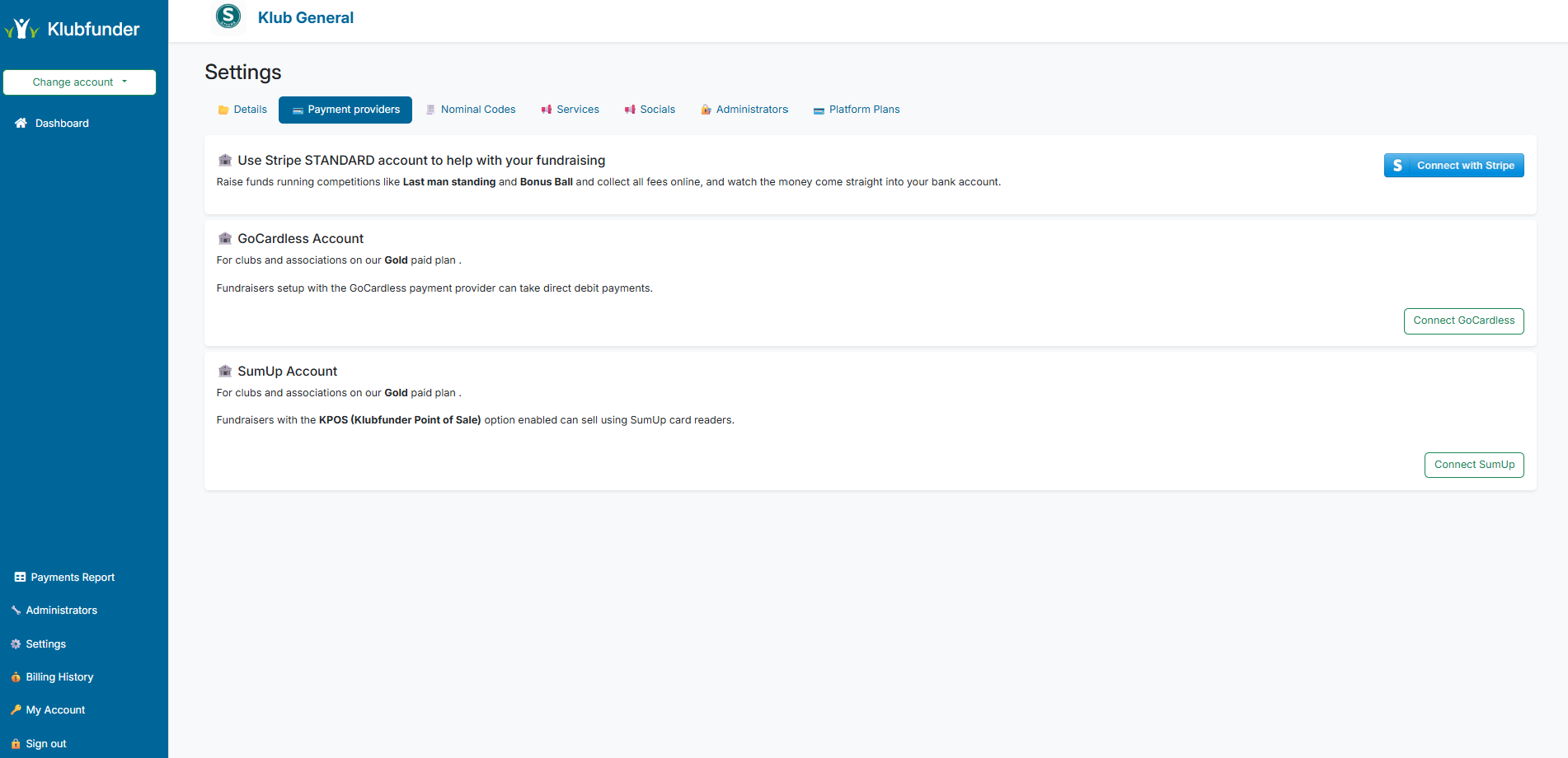
4️⃣ Connect Stripe (Online Card Payments)
Stripe is used for online card payments (debit/credit cards, Apple Pay, Google Pay).
Step 1 — Select Stripe
In Payment Providers, find the Stripe section and click Connect.
Step 2 — Log in to Stripe
You will be redirected to Stripe to log in (or create an account).
Step 3 — Authorise the Connection
Follow the on-screen prompts and approve access so Stripe can connect to Klubfunder.
Step 4 — Return to Klubfunder
Once complete, you will be returned to Klubfunder and Stripe should show as Connected.
After you connect
You can now accept online card payments through Klubfunder.
5️⃣ Connect GoCardless (Direct Debit)
GoCardless is used for Direct Debit payments from bank accounts (ideal for memberships, instalments, recurring collections).
Step 1 — Select GoCardless
In Payment Providers, find the GoCardless section and click Connect.
Step 2 — Log in to GoCardless
You will be redirected to GoCardless to log in (or create an account).
Step 3 — Authorise the Connection
Follow the prompts to approve access and connect GoCardless to Klubfunder.
Step 4 — Return to Klubfunder
You will be returned to Klubfunder and GoCardless should show as Connected.
After you connect
You can now accept Direct Debit payments through Klubfunder.
6️⃣ Connect SumUp (In-Person Card Payments)
SumUp is used for in-person payments using a card reader (match days, events, fundraisers).
Step 1 — Select SumUp
In Payment Providers, find the SumUp section and click Connect.
Step 2 — Log in to SumUp
You will be redirected to SumUp to log in (or create an account).
Step 3 — Authorise the Connection
Follow the prompts to approve access and connect SumUp to Klubfunder.
Step 4 — Return to Klubfunder
You will be returned to Klubfunder and SumUp should show as Connected.
After you connect
You can now take in-person card payments via SumUp (where supported in your Klubfunder plan and setup).
7️⃣ Troubleshooting (If Connection Fails)
If a provider does not show as connected:
- Make sure you are logged in as a Club Administrator
- Try again in a private/incognito browser window
- Confirm you used the correct provider login for your club (not a personal account)
- Check that the provider account has completed verification (if required)
If the issue continues, contact the Klubfunder support team and include:
- The provider you were connecting (Stripe / GoCardless / SumUp)
- The email used for the provider account
- Any error message shown on screen