Appearance
How to Upgrade Club Plan
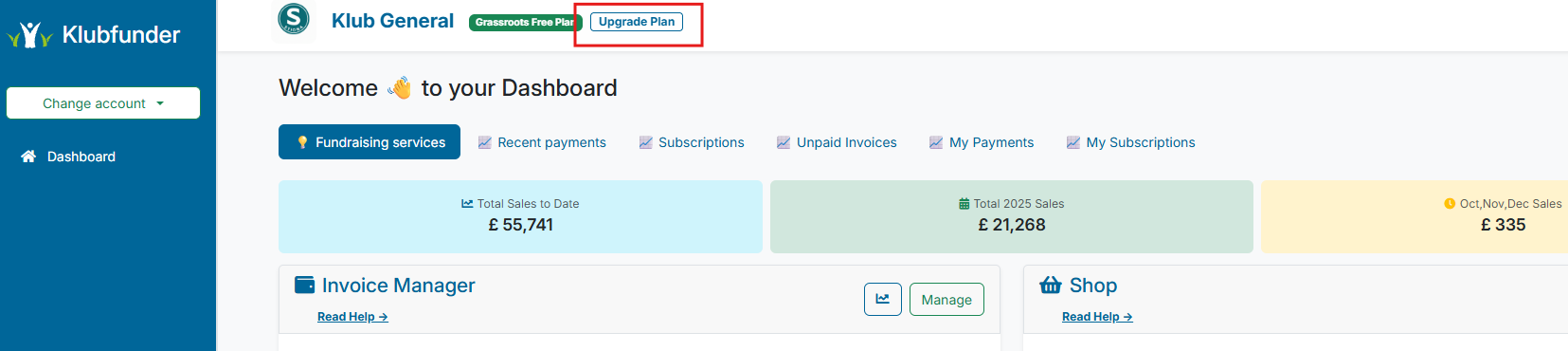
You can upgrade your plan from the Upgrade Plan button in the Club Header view as highlighted in the screenshot below.
Platform Plan Options
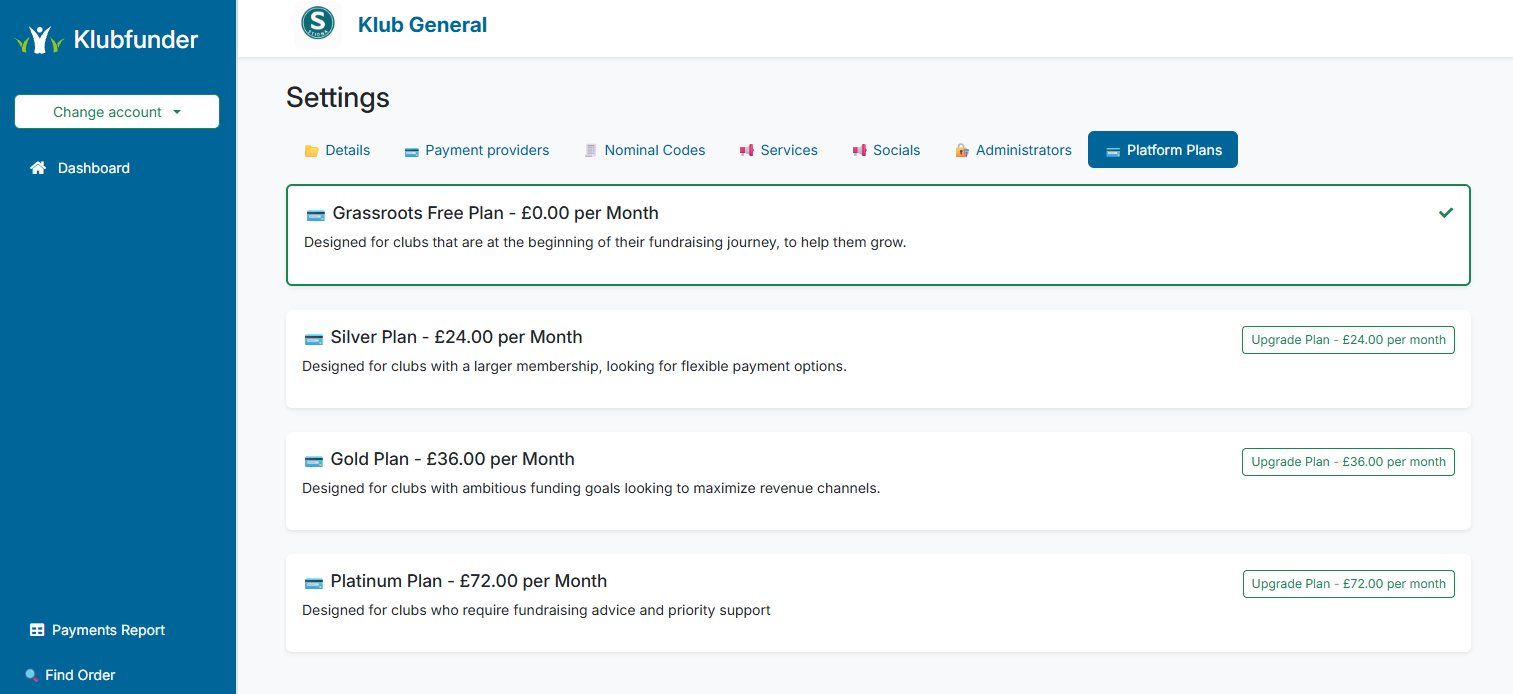
After clicking the Upgrade Plan button a list of the plan upgrade options will be displayed as shown below.
Upgrade Requirements
If you are upgrading from a Starter Free Plan to a paid plan then you will need:
- Club Responsible Person Details
- Club Bank Account Number
- Club Bank Account Sort Code
- KlubFunder Administrator Account
For upgrading from a Core Plan to a higher paid plan you will just need:
- KlubFunder Administrator Account
Upgrading from Starter
You can upgrade your plan from the Upgrade Plan button in the Club Header view as highlighted in the screenshot below.
Upgrading from Starter
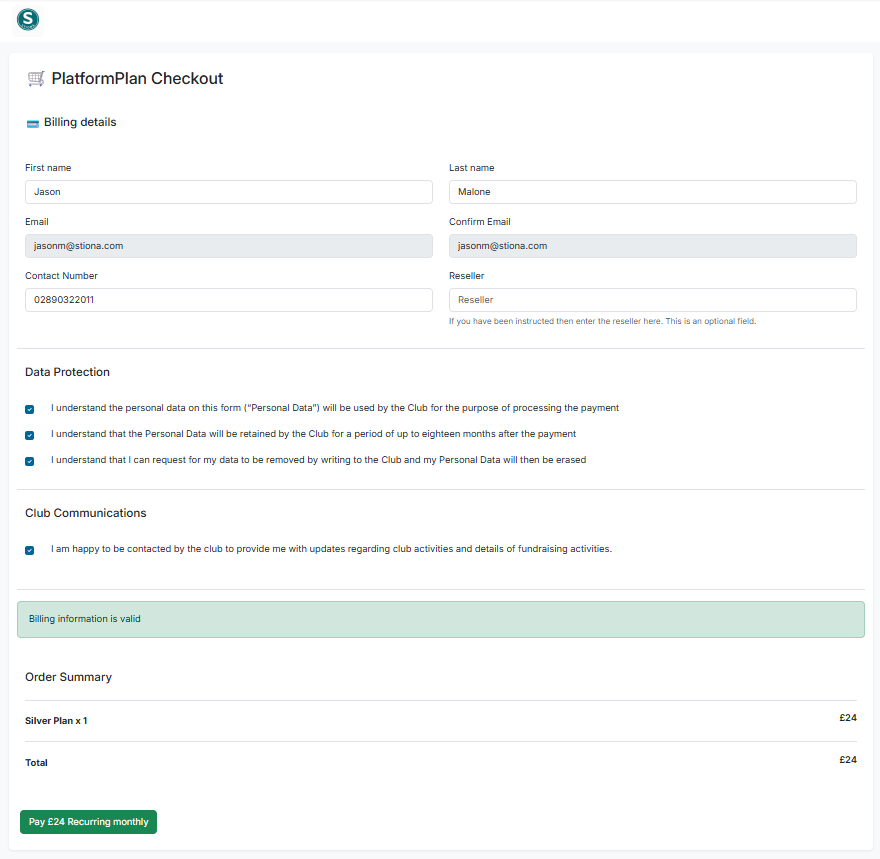
On the Platform Plan Checkout page, enter the following personal details:
- First Name
- Last Name
- Contact Number
Ensure that the Data Protection checkboxes are selected, and then click the Pay Recurring Monthly button to proceed.
💳 Step 4: Set Up Direct Debit with GoCardless
You will be redirected to the GoCardless website to set up your direct debit payment.
📝 Fill in Direct Debit Details
- Select the "or click here to use a company name" as highlighted by the red ellipse in the screenshot below.
- Also select the "or click here to enter your address manually"
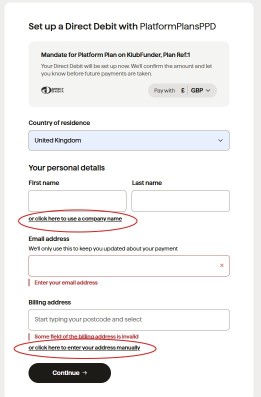
The form will then appear as the below:
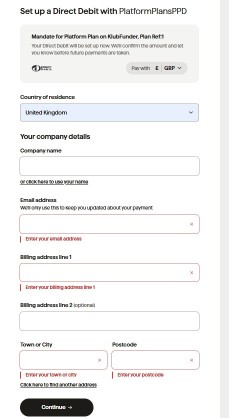
- Company Name: Use your club name as the company name.
- Bank Account Details: Fill in the Sort Code and Account Number from the bank account where the platform plan payments will be taken.
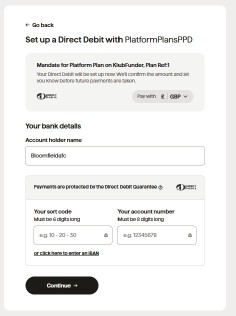
If the Account Holder Name differs from the club name, enter the correct name on the form.
You will be presented with a confirmation screen by go cardless which will allow you to confirm your details.
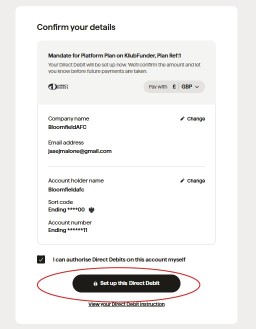
Click set up direct debit as highlighted by the red ellipse in the screenshot above to continue to the next step – Complete Upgrade
🎉 Step 5: Complete Upgrade
Once you've completed the GoCardless details, you'll be redirected back to the KlubFunder platform. You will see the confirmation screen below.
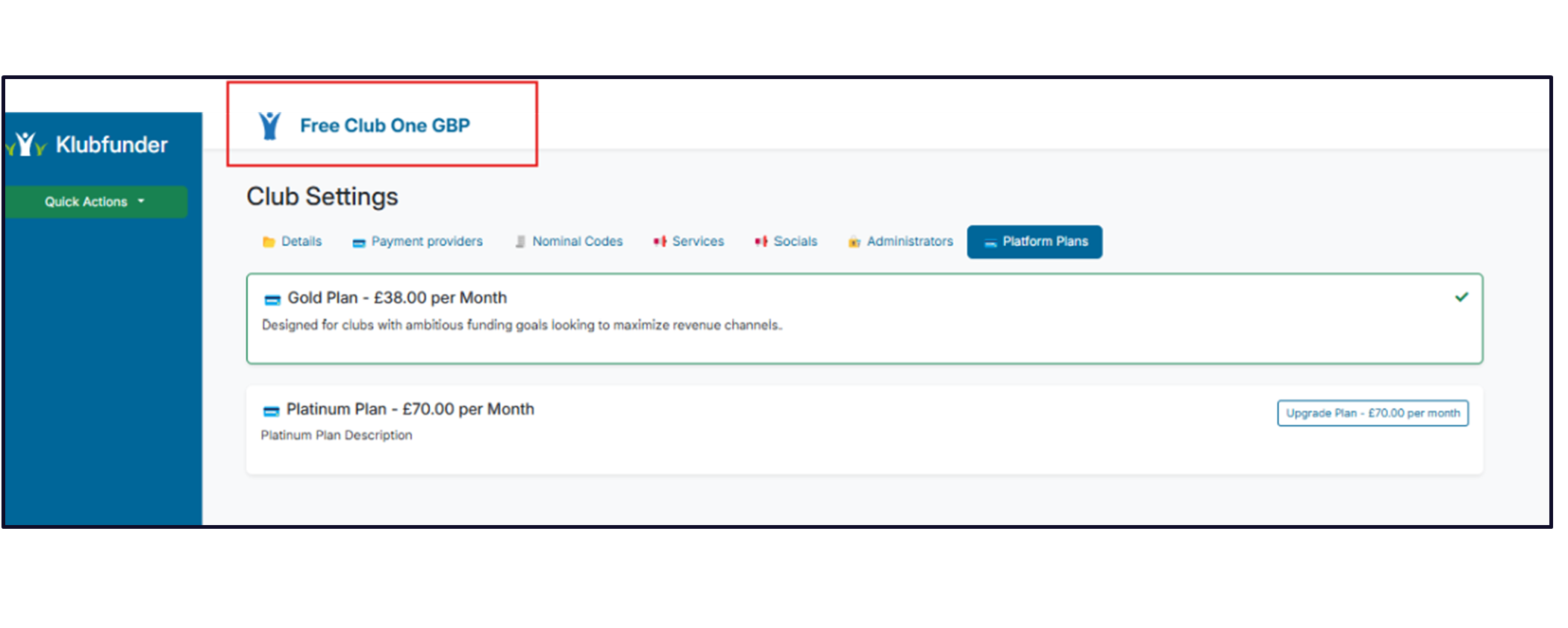
Your plan has been successfully upgraded! Click on the link (highlighted in the red box in screenshot above) to return to the Admin Dashboard and manage your new service features.